
Dovetail usability FAQ: navigation, interface changes, and getting started
Our interface has been redesigned within the last year. If a project, folder, or setting isn’t where you last saw it, this page shows where it lives now, followed by answers to the most common questions about getting around.
Navigating Dovetail
Most navigation in Dovetail runs through four entry points. Home opens with Chat, which answers questions from the workspace’s data, followed by the items admins have pinned, a personalized For you feed, and Browse, where folders live. The sidebar, opened with the menu icon or the [ key, holds Favorites and a dedicated page for each content type. Quick Search (⌘K or Ctrl+K) and Chat (⌘J or Ctrl+J) are available from any screen.
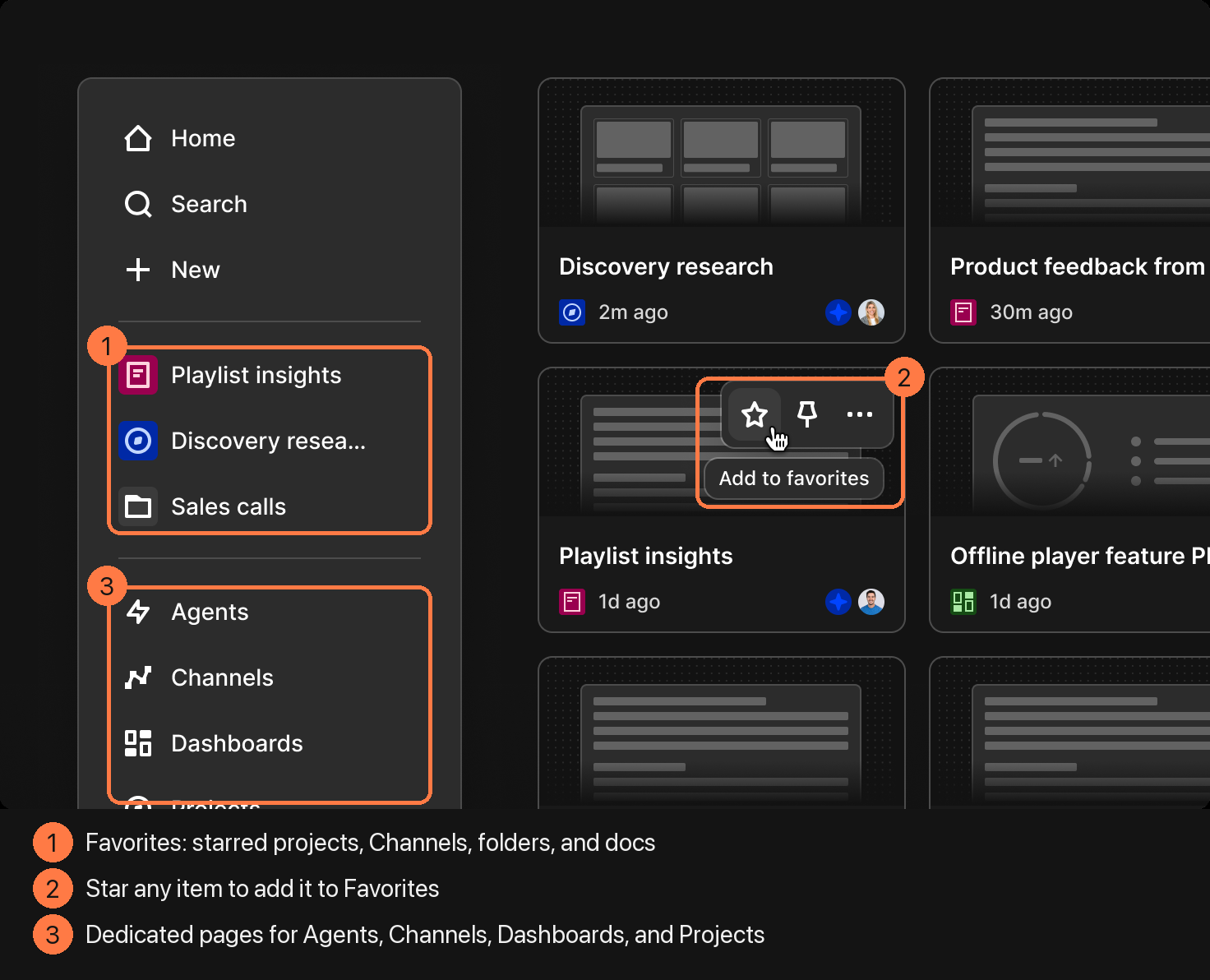
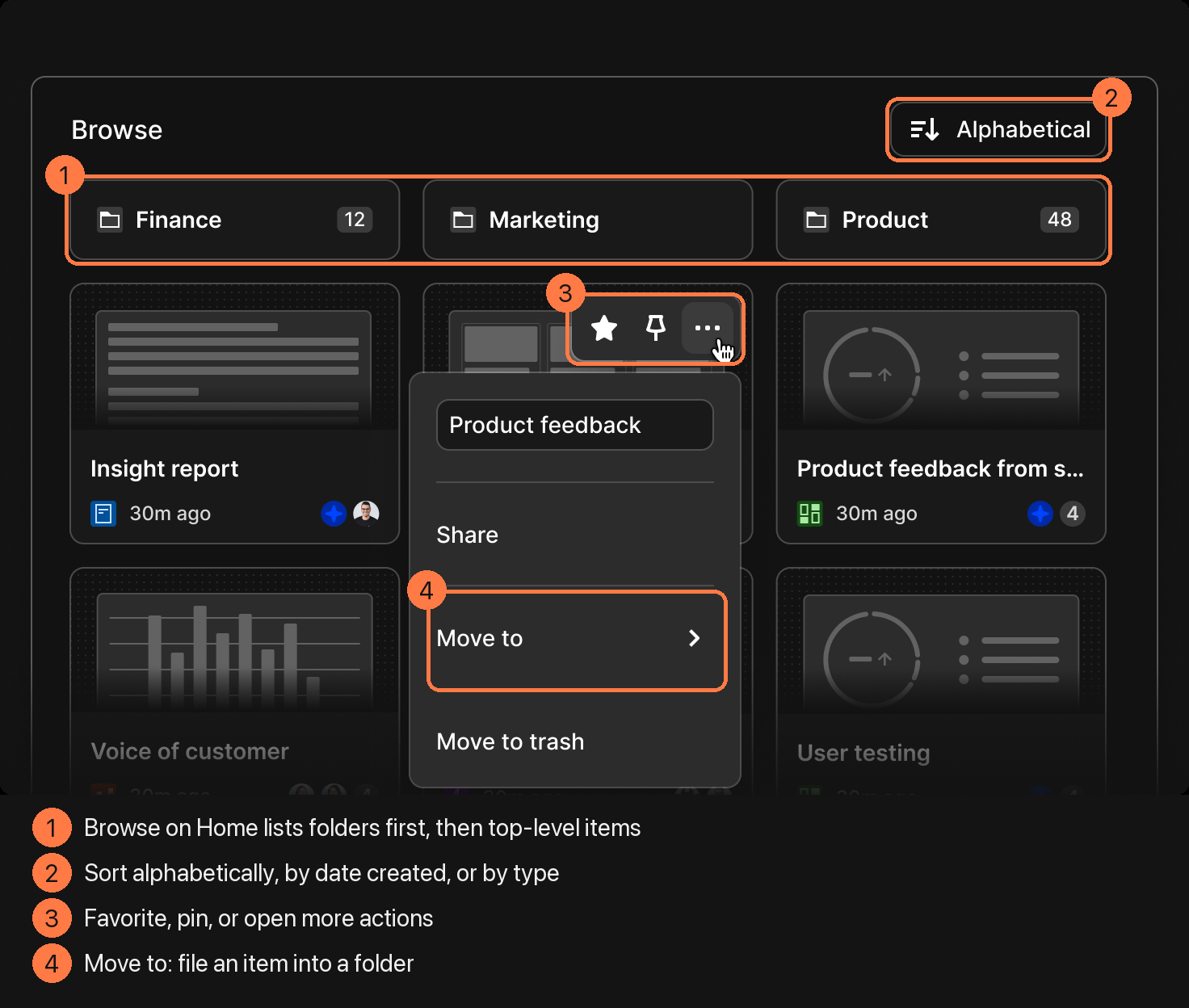
The sidebar’s dedicated pages list every item of that type regardless of folder, so the Projects page is the fastest route to a project when you don’t know where it was filed. Folders still exist—they sit in Browse on Home, above any items created without a folder.
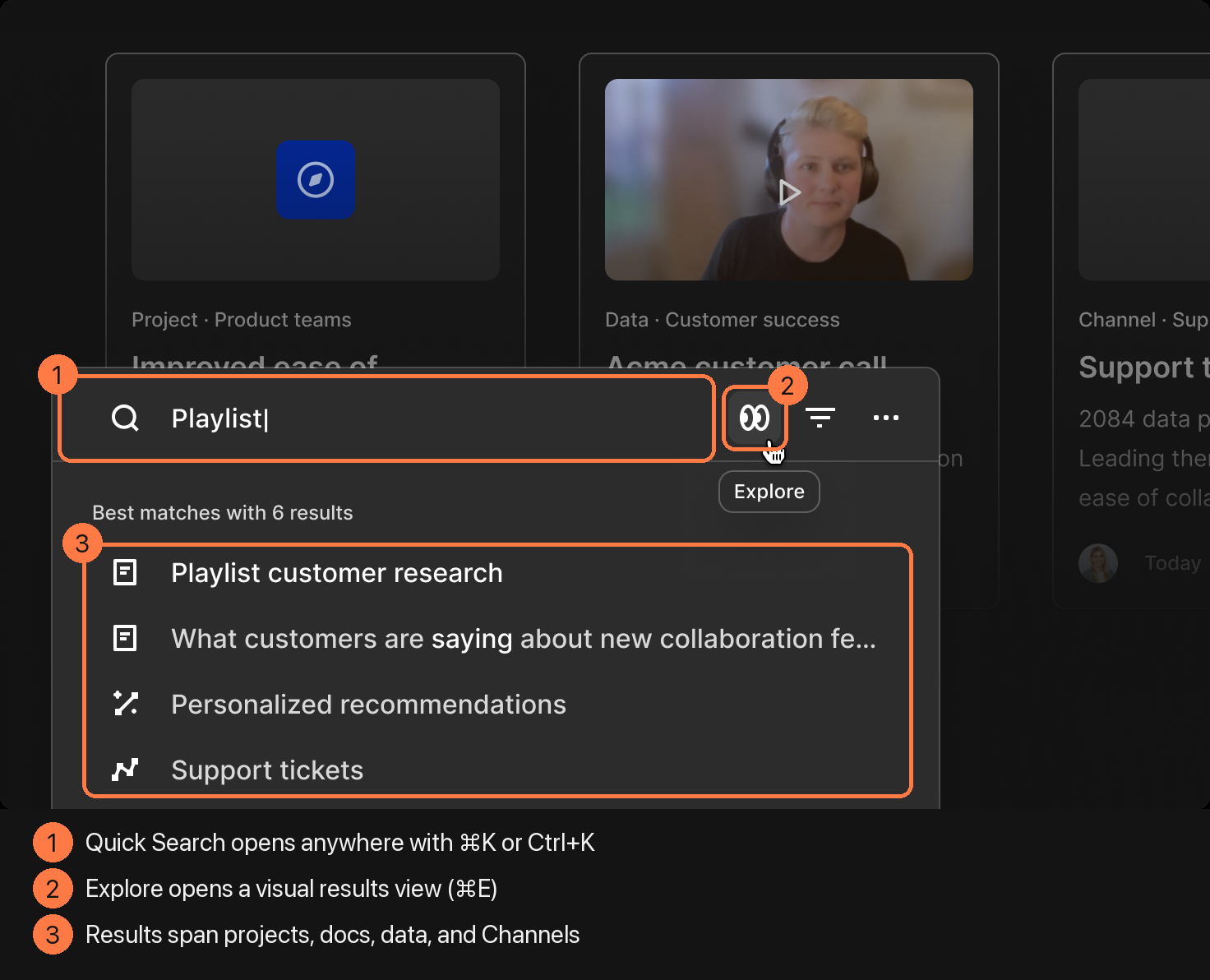
When you know an item’s name, Quick Search is faster than browsing. It searches projects, docs, data, Channels, and settings pages from a single box, and question-style searches return an AI summary on the Enterprise plan.
Where things live now
| What you’re looking for | Where it lives now | Shortcut |
|---|---|---|
| A specific project | Sidebar → Projects, or Favorites | ⌘K / Ctrl+K, then type its name |
| A Channel | Sidebar → Channels, or Favorites | ⌘K / Ctrl+K |
| Folders | Home → Browse | — |
| Pinned team content | Home → Pinned for everyone | — |
| Archived projects | Sidebar → Projects → Sort and Filter → All → Archived | — |
| Settings, integrations, and invites | Sidebar → More | ⌘K / Ctrl+K, then type the setting’s name |
| Notifications | Sidebar → More | n |
| Create a project, doc, or Channel | Sidebar → + New | c |
| Ask a question across all data | Chat, at the top of Home | ⌘J / Ctrl+J |
What changed, and why
The 2026 redesign responded to growing data volume. Workspaces now take in feedback continuously from connected tools, and the admin-curated custom home and feeds couldn’t keep pace without constant manual upkeep. The announcement post explains the reasoning in full, and the product changelog records each change since, including list view and drag-and-drop between folders, which arrived on Home in April 2026.
Getting up to speed
The learning curve depends mostly on what you’re doing in Dovetail. Someone asking questions of existing research can rely on Chat and Quick Search from the first day. Admins who connect data sources, set up Channels—streams of feedback that Dovetail imports from a connected source such as Zendesk or Gong and sorts into themes automatically—and manage folders and permissions have more to learn. Dovetail’s Start by role guide sets out a first path for each team, and the terminology guide defines every product term in plain language.
FAQs
Where do I find my projects?
Open the sidebar with the menu icon in the top-left corner or press [, then click Projects. That page lists every project in the workspace, whatever folder it sits in. You can also press ⌘K (Mac) or Ctrl+K (Windows) and type the project’s name, or star a project so it appears under Favorites in the sidebar. Learn more about projects
How do I navigate between Channels and Projects?
Channels and Projects each have their own page in the sidebar, which you can open from any screen with the menu icon or the [ key. Click Channels or Projects to switch between them. To jump straight to one Channel or project, star it so it stays under Favorites, or find it by name with Quick Search (⌘K or Ctrl+K). Learn more about Channels
Where did my folders go?
Folders haven’t been removed. They now sit in the Browse section on Home, listed above any items that aren’t in a folder. Select a folder to open it, then use Sort in the top right to order its contents. Folders are available on the Enterprise plan and can nest up to five levels deep. Learn more about folders
How do I open the sidebar in Dovetail?
Click the menu icon in the top-left corner of any screen, or press [. The sidebar stays collapsed while you work. It holds Home, Search, + New, your Favorites, and dedicated pages for Agents, Channels, Dashboards, Projects, and Docs. Notifications, integrations, user invites, and settings sit under More at the bottom. Learn more about Home and the sidebar
How do I search across my Dovetail workspace?
Press ⌘K (Mac) or Ctrl+K (Windows) anywhere to open Quick Search, which covers projects, docs, data, Channels, and settings pages. Phrase your search as a question to get an AI summary, which requires the Enterprise plan. Press ⌘E, or click Explore, for a visual results view built for browsing highlights and customer conversations. Learn more about search
What keyboard shortcuts does Dovetail have?
The main navigation shortcuts are [ to open the sidebar, c to create something new, ⌘K or Ctrl+K for Quick Search, ⌘E for Explore, ⌘J or Ctrl+J for Chat, and n for notifications. For editor shortcuts inside a note or doc, click ··· in the top right and select Shortcuts. Learn more about editing shortcuts
How do I pin or favorite a project so it’s easy to find?
Hover over a project, doc, folder, Channel, dashboard, or agent and click the star icon to add it to your Favorites, which appear in the sidebar on every screen. Admins can also pin items to Pinned for everyone on Home, which puts them in front of the whole workspace and can be reordered by dragging. Learn more about Home
Where do I find archived projects?
Open Projects from the sidebar, click Sort and Filter, choose All, then select Archived. Deleted items are a separate case: they go to trash, and you can restore them within 30 days of deletion. Learn more about Home and archived projects
Why did Dovetail change its interface?
Dovetail workspaces now take in feedback continuously from connected tools such as Zendesk, Gong, and the App Store, and admins found it overwhelming to organize that volume by hand through folders, custom home content, and feeds. The redesign replaced manual curation with a personalized Home, Chat at the top, and dedicated pages for each content type. Read the announcement
What happened to custom home and feeds?
Custom home and feeds were retired when Home became personalized by default. Both needed ongoing manual setup and adoption stayed low. Their jobs now belong to For you, which surfaces relevant content for each person automatically, Pinned for everyone, which admins curate, and agents, which deliver updates on customer feedback to tools such as Slack. Learn more about Home
Where are settings, integrations, and notifications in Dovetail?
Click More at the bottom of the sidebar for settings, integrations, notifications, contacts, and user invites, or press n to open notifications directly. Settings are grouped into Profile, General, Team management, Data management, Structure, and Compliance. You can also type a setting’s name into Quick Search (⌘K or Ctrl+K) to jump straight to it. Learn more about workspace settings
How long does it take to learn Dovetail?
Someone asking questions of existing research only needs Chat and Quick Search, which work on the first day. Admins who set up Channels, folders, and permissions have more to learn. The Start by role guide sets out a first path for product, design, research, support, sales, and marketing teams. Start by role
Is Dovetail easy to use for beginners?
Beginners can start by typing a question into Chat at the top of Home, which answers from the workspace’s data. Home’s Welcome section offers first steps: connect a data source, invite teammates, or ask a question. Terms such as highlights, Channels, and projects are defined in Dovetail’s terminology guide. Read the Dovetail terminology guide