29 Jan 202400:00
Create highlights without tags
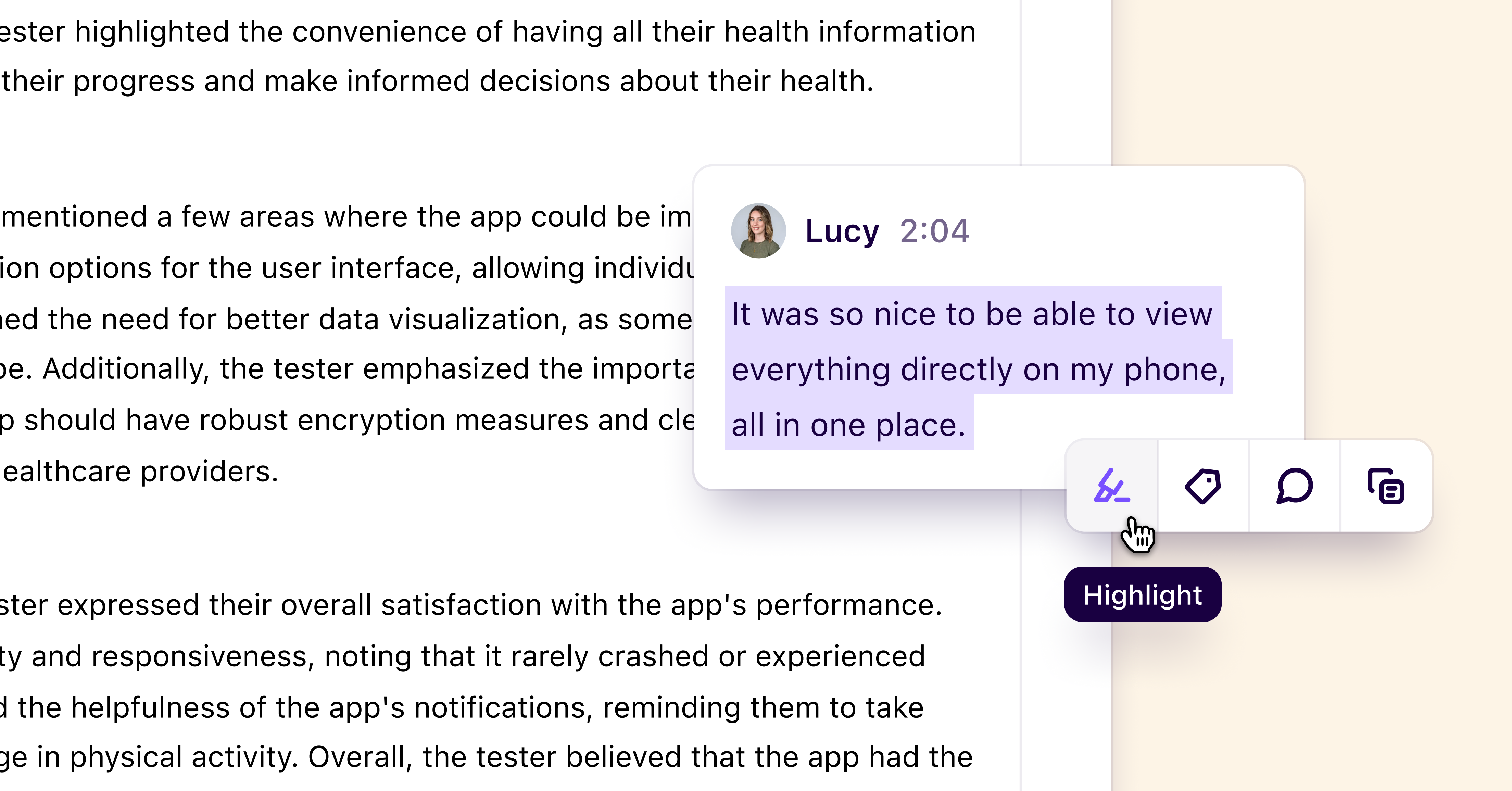
You can now create highlights without needing to apply a tag. Simply select text on a note like normal, and click Highlight from the new, simplified action bar. You can still apply tags to highlights later on, either from the note itself, or from a highlight view.
This change makes it faster than ever to share a quick clip or assemble a highlight reel from a customer call, sales demo, or research session.
If you’re a power user, you can quickly create highlights by selecting text, pressing **Tab **on your keyboard, then pressing Enter.
Additional improvements
- Added ability to resize rectangles on canvas views from the sides and corners
- Improved mouse click functionality within the insight editor so that text blocks can be added above existing blocks with more accuracy
- Fixed a bug that was causing text added to canvas views to be deleted after clustering
- Improved contextual toolbar on canvas views, it now anchors and moves with selected objects
- Fixed bug that prevented users from being able to copy the title of a group in canvas views
- Speaker labels are now included when you copy and paste sections of your transcript outside of Dovetail